

Okta Cross-App Access (the productized ID-JAG flow) is an Early Access feature. Enable it from Admin Console → Settings → Features before you start. EMA also requires a Context7 enterprise teamspace.
How it works
- A developer signs in to their MCP client with your Okta org.
- The client asks Okta for an ID-JAG scoped to Context7. Okta applies your access policy (group, role, conditional access) and issues it only if the user is allowed.
- The client exchanges the ID-JAG with Context7 for an access token, then calls
mcp.context7.com. - Context7 validates the ID-JAG against your tenant and, on first sign-in, provisions the user as a teamspace member automatically (matched by email).
Before you start
- An Okta org with Cross App Access enabled.
- A Context7 enterprise teamspace. The Enterprise-Managed Auth settings appear only for enterprise plans.
- A Claude Team or Enterprise organization with Enterprise-Managed Auth enabled.
- Developers assigned to the connected Okta app. They are provisioned into the teamspace automatically on first sign-in, so there is no manual user list to maintain.
Part 1: Configure Okta
Step 1: Enable Cross App Access
In the Admin Console, go to Settings → Features, find Cross App Access under Early Access, and turn it on.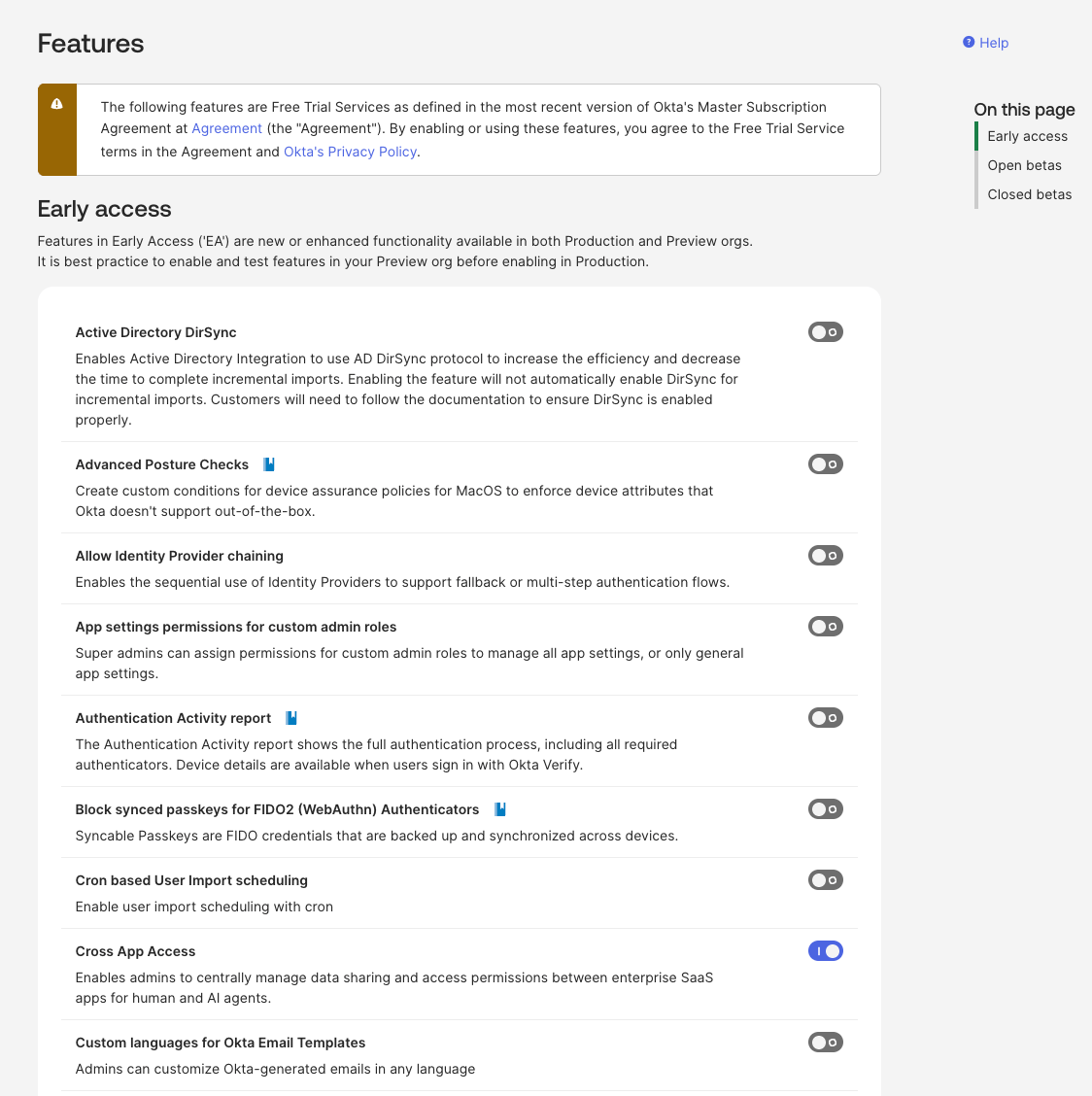
Step 2: Add Context7 as a resource app
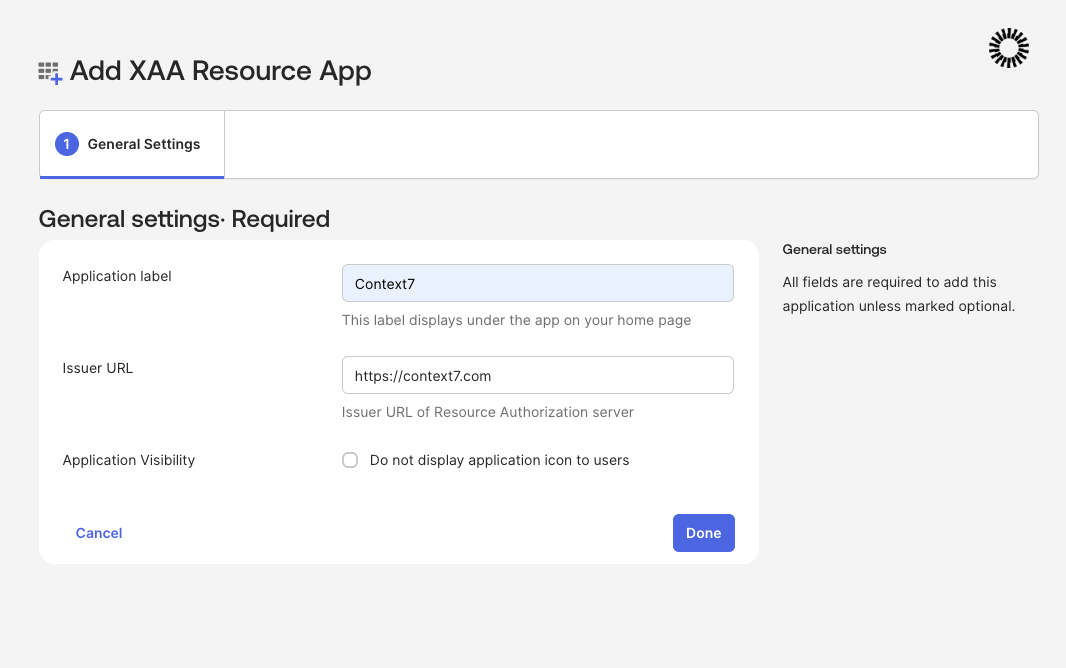
Go to Applications → Applications → Browse App Catalog, search for XAA Resource App, and click Add Integration.- Application label:
Context7 - Issuer URL:
https://context7.com
Step 3: Add your MCP client as a requesting app
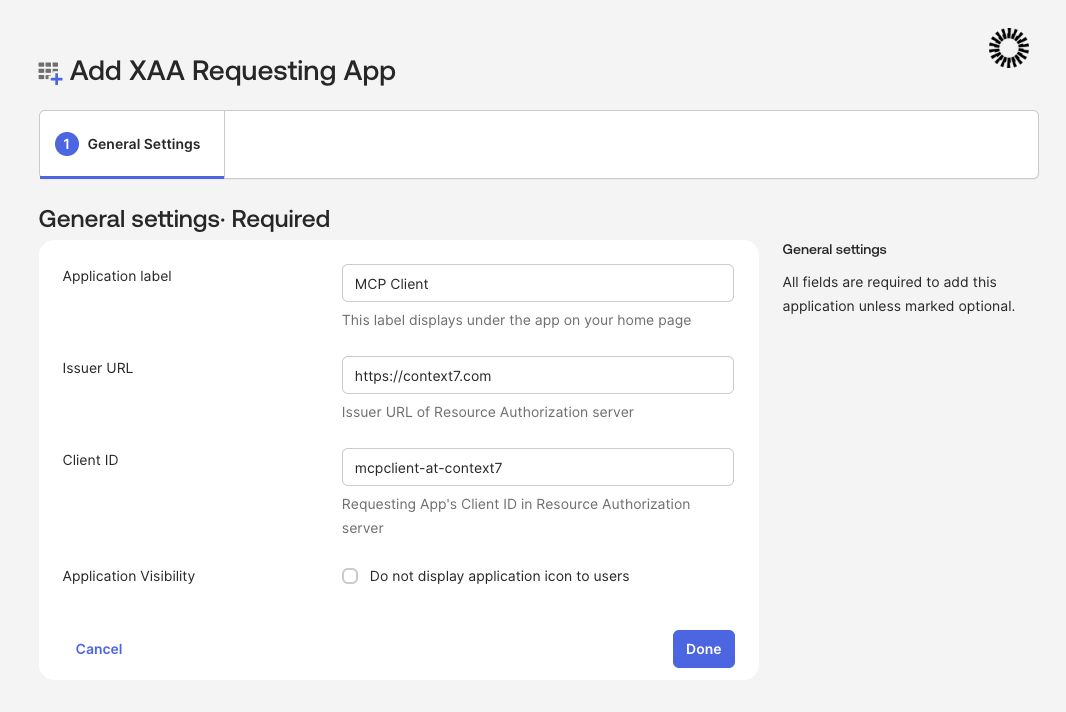
Browse the catalog again, search for XAA Requesting App, and click Add Integration.- Application label:
Claude - Issuer URL:
https://context7.com - Client ID: the fixed client identifier provided during your Claude EMA onboarding
Step 4: Connect the two apps
Open the requesting app → Manage Connections tab. Under Apps providing consent, choose Add resource apps, select Context7, and Save.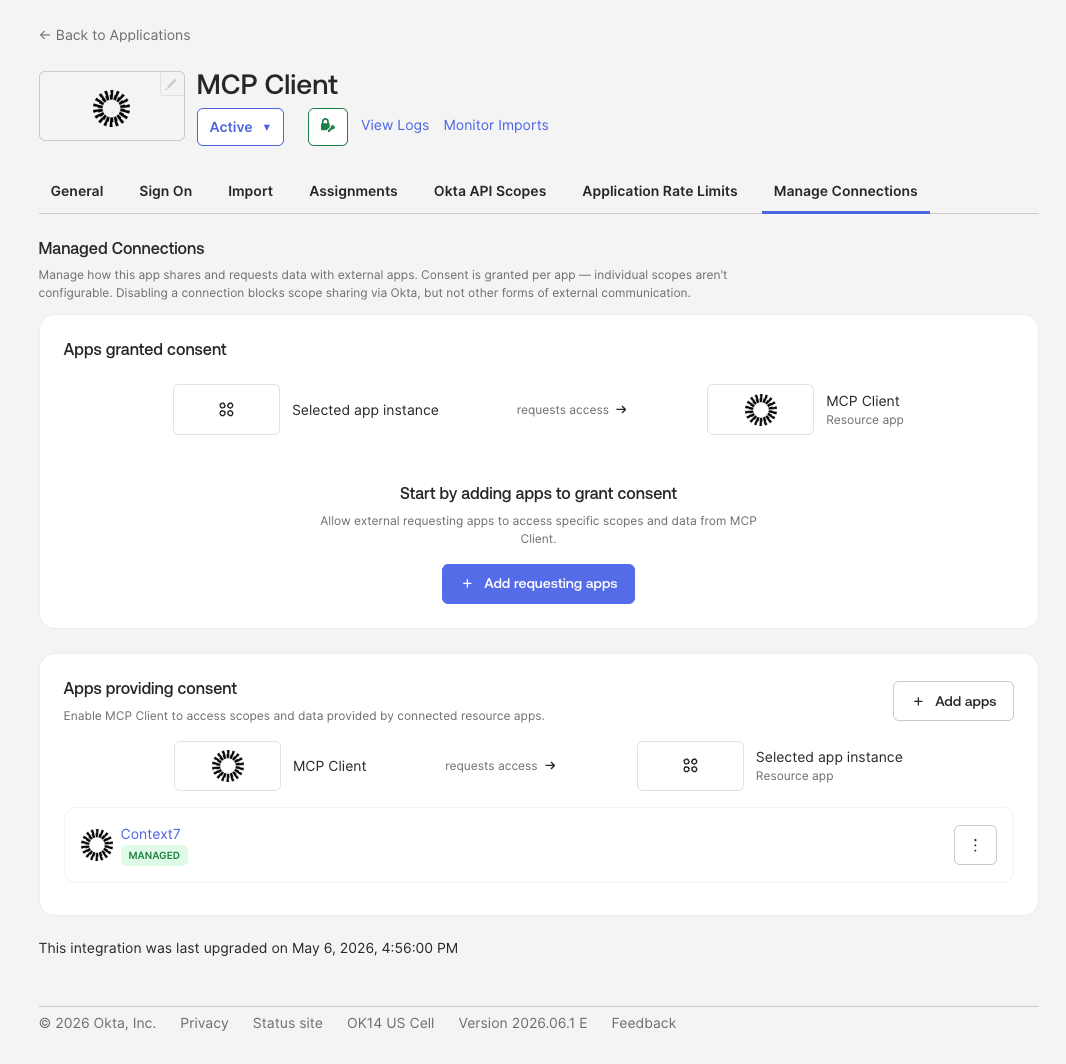
Step 5: Assign your users
On both apps, open the Assignments tab and assign the people (or groups) who should have access. Only assigned users can obtain an ID-JAG.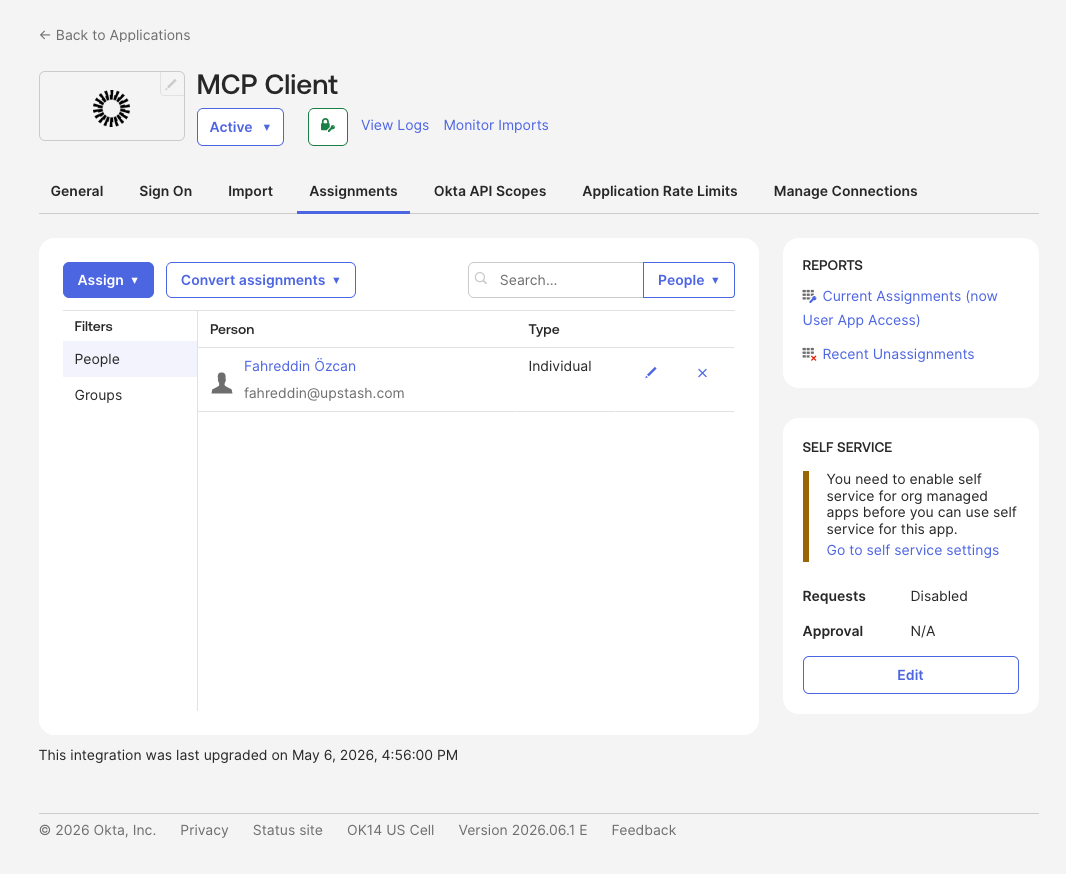
Part 2: Configure Context7
Sign in to context7.com/dashboard, select your enterprise teamspace, open the Enterprise tab, and select Okta.- Identity provider issuer: your Okta org issuer, for example
https://<your-org>.okta.com. - Scope (optional): scopes to grant on the issued access token. Leave blank to pass through whatever Okta authorizes.
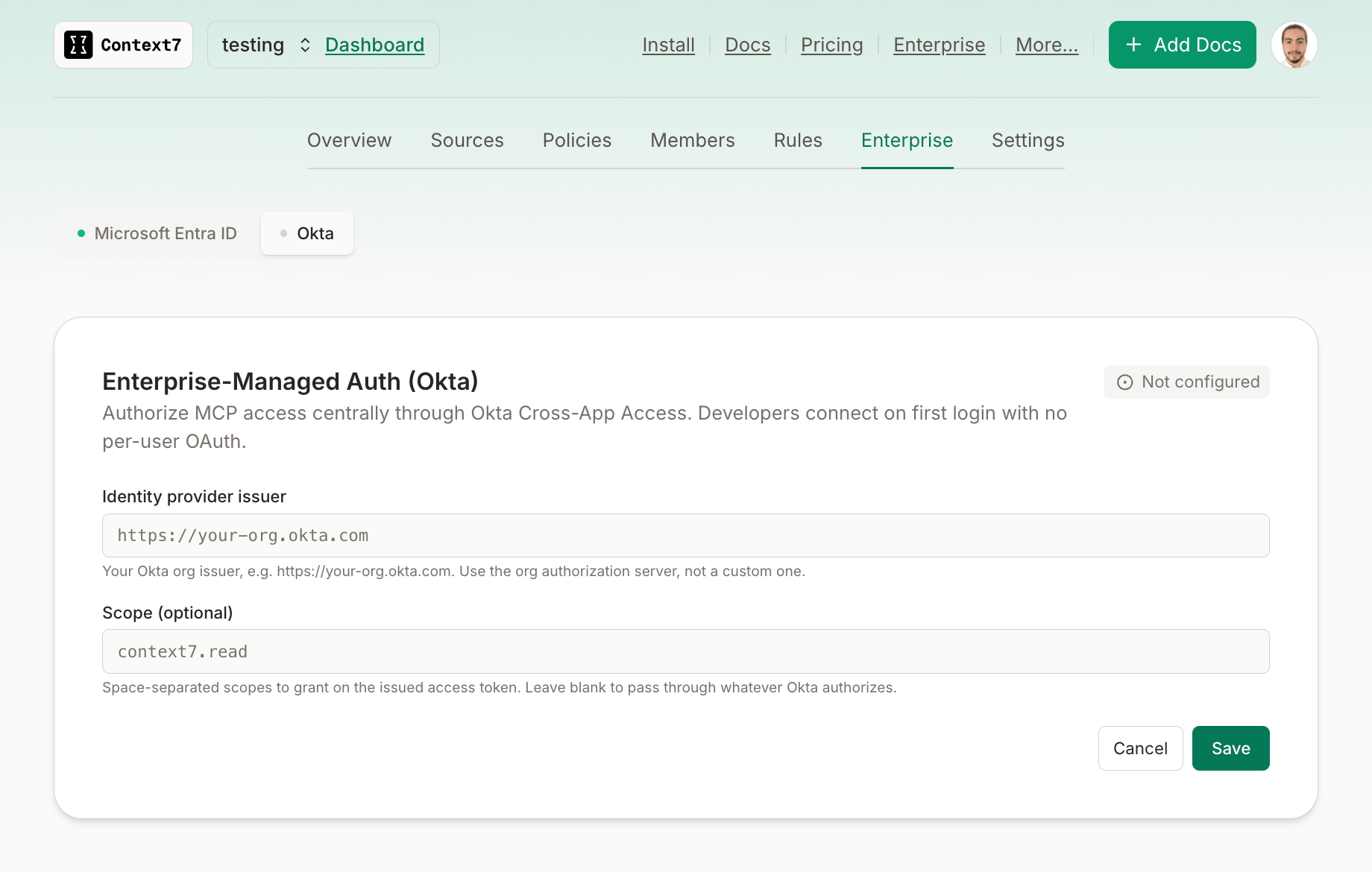
Use your org authorization server issuer (
https://<your-org>.okta.com), not a custom authorization server. Cross-App Access apps cannot use custom authorization servers.Part 3: How developers connect
Enterprise-Managed Auth is wired on the client side by your organization, not per developer. The Okta sign-in isn’t triggered by a server URL someone pastes. It happens because Claude is configured to use your enterprise IdP for managed connectors. Your admin connects the Okta org to Claude and enables the same Context7 endpoint used by the Claude Code marketplace plugin as a managed connector:client=claude-code-plugin query identifies marketplace traffic and makes authentication
mandatory. It does not select EMA by itself. Claude selects managed authorization when your Claude
organization enables it for Context7; otherwise Claude Code uses the normal interactive OAuth flow.
Both flows use the same MCP resource and protected-resource metadata.
After the connector is enabled, Claude obtains an ID-JAG from Okta and exchanges it with Context7
for an access token. There is no token to paste and no per-user OAuth consent screen.
See Claude’s
Enterprise-Managed Auth for connectors
documentation for the client-side admin setup and current availability.
Troubleshooting
unauthorized_client / “client cannot use a custom authorization server”
First confirm that the requesting app uses the fixed Claude Client ID from Step 3 and that Context7
has enabled Claude EMA for your teamspace. If those match, check whether sign-in or token exchange
used a custom Okta authorization server. Cross-App Access requires the org authorization server
endpoints (https://<your-org>.okta.com/oauth2/v1/...).
Claude opens an interactive OAuth screen
Confirm that the managed connector URL exactly matches the URL above and that your Claude organization has managed authorization enabled for Context7. The query parameter only identifies the marketplace plugin; Claude’s organization setting determines whether it uses EMA or interactive OAuth.A valid Okta user can’t be provisioned
Context7 provisions members from theemail claim on the ID-JAG, so the connected app must request the email scope at sign-in (it’s included in the setup above). If provisioning still fails, the teamspace may be at its member limit.
The user receives no token at all
The user is not assigned to the connected apps in Okta, or the connection between the requesting and resource apps was not saved. Re-check Steps 4 and 5.What this does not cover
- Identity providers other than Okta. EMA currently supports Okta as the IdP. For Microsoft Entra, see Microsoft Entra ID.
- Group-based authorization inside Context7. Okta decides who can obtain a token; Context7 authorizes against teamspace membership. Restricting which libraries a group can access is not configured here.